FreeQAs
 Request Exam  Contact
  • Home
  • View All Exams
  • New QA's
  • Upload
PRACTICE EXAMS:
  • Oracle
  • Fortinet
  • Juniper
  • Microsoft
  • Cisco
  • Citrix
  • CompTIA
  • VMware
  • ISC
  • SAP
  • EMC
  • PMI
  • HP
  • Salesforce
  • Other
  • Oracle
    Oracle
  • Fortinet
    Fortinet
  • Juniper
    Juniper
  • Microsoft
    Microsoft
  • Cisco
    Cisco
  • Citrix
    Citrix
  • CompTIA
    CompTIA
  • VMware
    VMware
  • ISC
    ISC
  • SAP
    SAP
  • EMC
    EMC
  • PMI
    PMI
  • HP
    HP
  • Salesforce
    Salesforce
  1. Home
  2. Microsoft Certification
  3. AZ-500 Exam
  4. Microsoft.AZ-500.v2022-04-20.q230 Dumps
  • ««
  • «
  • …
  • 31
  • 32
  • 33
  • 34
  • 35
  • 36
  • 37
  • 38
  • 39
  • 40
  • …
  • »
  • »»
Download Now

Question 171

Use the following login credentials as needed:
To enter your username, place your cursor in the Sign in box and click on the username below.
To enter your password, place your cursor in the Enter password box and click on the password below.
Azure Username: [email protected]
Azure Password: Ag1Bh9!#Bd
The following information is for technical support purposes only:
Lab Instance: 10598168


You need to collect all the audit failure data from the security log of a virtual machine named VM1 to an Azure Storage account.
To complete this task, sign in to the Azure portal.
This task might take several minutes to complete You can perform other tasks while the task completes.

Correct Answer:
See the explanation below.
Explanation
Step 1: Create a workspace
Azure Monitor can collect data directly from your Azure virtual machines into a Log Analytics workspace for detailed analysis and correlation.
1. In the Azure portal, select All services. In the list of resources, type Log Analytics. As you begin typing, the list filters based on your input. Select Log Analytics workspaces.

2. Select Create, and then select choices for the following items:

3. After providing the required information on the Log Analytics workspace pane, select OK.
While the information is verified and the workspace is created, you can track its progress under Notifications from the menu.
Step 2: Enable the Log Analytics VM Extension
Installing the Log Analytics VM extension for Windows and Linux allows Azure Monitor to collect data from your Azure VMs.
1. In the Azure portal, select All services found in the upper left-hand corner. In the list of resources, type Log Analytics. As you begin typing, the list filters based on your input. Select Log Analytics workspaces.
2. In your list of Log Analytics workspaces, select DefaultWorkspace (the name you created in step 1).
3. On the left-hand menu, under Workspace Data Sources, select Virtual machines.
4. In the list of Virtual machines, select a virtual machine you want to install the agent on. Notice that the Log Analytics connection status for the VM indicates that it is Not connected.
5. In the details for your virtual machine, select Connect. The agent is automatically installed and configured for your Log Analytics workspace. This process takes a few minutes, during which time the Status shows Connecting.
After you install and connect the agent, the Log Analytics connection status will be updated with This workspace.
Reference: https://docs.microsoft.com/en-us/azure/azure-monitor/learn/quick-collect-azurevm
insert code

Question 172

You have two Azure virtual machines in the East US2 region as shown in the following table.

You deploy and configure an Azure Key vault.
You need to ensure that you can enable Azure Disk Encryption on VM1 and VM2.
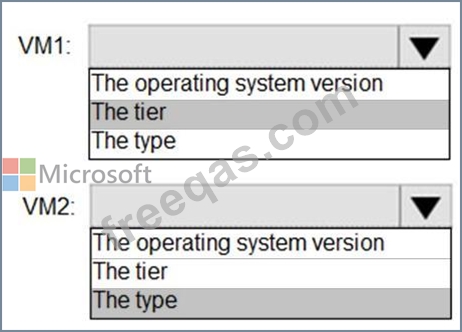
What should you modify on each virtual machine? To answer, select the appropriate options in the answer area.
NOTE: Each correct selection is worth one point.

Correct Answer:

Explanation

VM1: The Tier
The Tier needs to be upgraded to standard.
Disk Encryption for Windows and Linux IaaS VMs is in General Availability in all Azure public regions and Azure Government regions for Standard VMs and VMs with Azure Premium Storage.
VM2: The type
Need to change the VMtype to any of A, D, DS, G, GS, F, and so on, series IaaS VMs.
Not the operating system version: Ubuntu 16.04 is supported.
References:
https://docs.microsoft.com/en-us/azure/security/azure-security-disk-encryption-overview
https://docs.microsoft.com/en-us/azure/security/azure-security-disk-encryption-faq#bkmk_LinuxOSSupport
insert code

Question 173

Note: This question is part of a series of questions that present the same scenario. Each question in the series contains a unique solution that might meet the stated goals. Some question sets might have more than one correct solution, while others might not have a correct solution.
After you answer a question in this section, you will NOT be able to return to it. As a result, these questions will not appear in the review screen.
You use Azure Security Center for the centralized policy management of three Azure subscriptions.
You use several policy definitions to manage the security of the subscriptions.
You need to deploy the policy definitions as a group to all three subscriptions.
Solution: You create a policy definition and assignments that are scoped to resource groups.
Does this meet the goal?

Correct Answer: B
Explanation
References:
https://4sysops.com/archives/apply-governance-policy-to-multiple-azure-subscriptions-with-management-groups
insert code

Question 174

You have an Azure key vault named KeyVault1 that contains the items shown in the following table.

In KeyVault, the following events occur in sequence:
* Item1 is deleted
* Administrator enables soft delete
* Item2 and Policy1 are deleted.
For each of the following statements, select Yes if the statement is true. Otherwise, select No.
NOTE: Each correct selection is worth one point.

Correct Answer:

Explanation

Reference:
https://docs.microsoft.com/en-us/azure/key-vault/general/soft-delete-overview
insert code

Question 175

You need to ensure that the AzureBackupReport log for the Vault1 Recovery Services vault is stored in the WS11641655 Azure Log Analytics workspace.
To complete this task, sign in to the Azure portal and modify the Azure resources.

Correct Answer:
See the explanation below.
Explanation
1. In the Azure portal, type Recovery Services Vaults in the search box, select Recovery Services Vaults from the search results then select Vault1. Alternatively, browse to Recovery Services Vaults in the left navigation pane.
2. In the properties of Vault1, scroll down to the Monitoring section and select Diagnostic Settings.
3. Click the Add a diagnostic setting link.
4. Enter a name in the Diagnostic settings name box.
5. In the Log section, select AzureBackupReport.

6. In the Destination details section, select Send to log analytics

7. Select the WS11641655 Azure Log Analytics workspace.
8. Click the Save button to save the changes.
Reference:
https://docs.microsoft.com/en-us/azure/backup/backup-azure-diagnostic-events
insert code
  • ««
  • «
  • …
  • 31
  • 32
  • 33
  • 34
  • 35
  • 36
  • 37
  • 38
  • 39
  • 40
  • …
  • »
  • »»
[×]

Download PDF File

Enter your email address to download Microsoft.AZ-500.v2022-04-20.q230 Dumps

Email:

FreeQAs

Our website provides the Largest and the most Latest vendors Certification Exam materials around the world.

Using dumps we provide to Pass the Exam, we has the Valid Dumps with passing guranteed just which you need.

  • DMCA
  • About
  • Contact Us
  • Privacy Policy
  • Terms & Conditions
©2026 FreeQAs

www.freeqas.com materials do not contain actual questions and answers from Cisco's certification exams.
