What is the status of the Host I/O paths to the target array after a Non-Disruptive Migration Cutover?
Correct Answer: B
Question 7
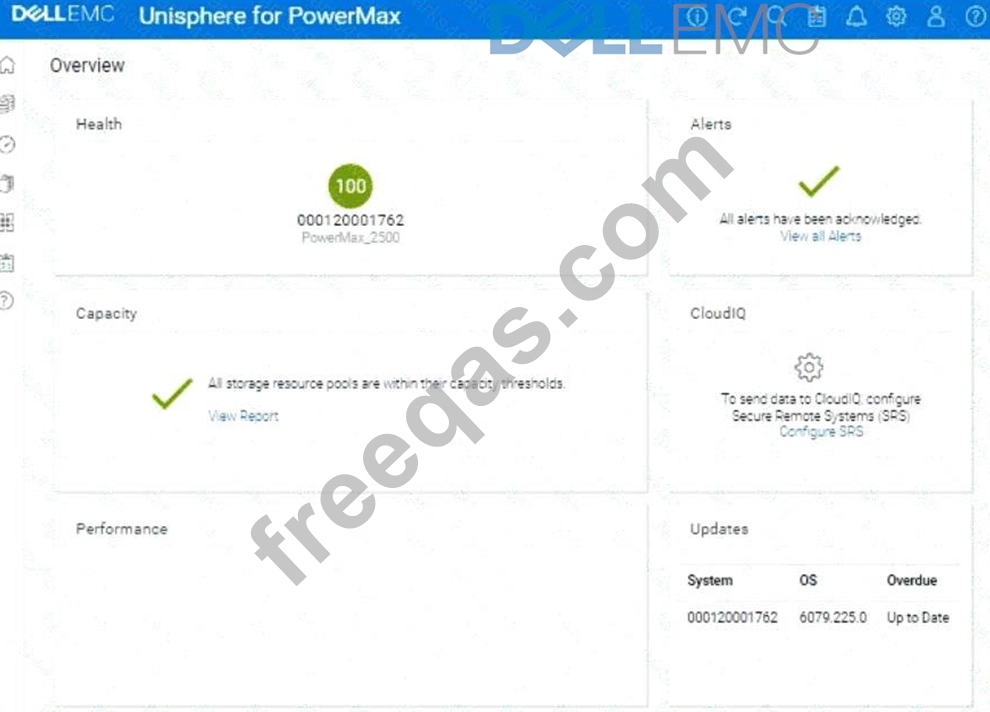
A company is preparing for a major product launch and a quarterly compliance audit. Perform a system health check to ensure that the storage array with SID - 1762 is functioning optimally, and also review the compliance status, generate and download the compliance report for all SGs. Use the simulator to complete these tasks.
Correct Answer:
See the explanation for step by step solution. Explanation: Okay, I understand. We need to perform a system health check and review the compliance status for a PowerMax array with SID ending in 1762 using the Unisphere simulator, then generate and download a compliance report. Here's how you would do it in the Unisphere for PowerMax simulator, based on the provided image and common Unisphere functionality: Steps: 1. Launch the Simulator and Access the System Health View * Open Unisphere for PowerMax in your web browser. * You should already be logged in to the simulator, with the PowerMax array with SID 1762. * The initialOverviewpage (as shown in the image) provides a good starting point for a health check. 2. Analyze the Overview Page * Health:The "Health" section displays the overall health status of the array. In the image, it shows "100" with a green checkmark, which indicates that the array is currently healthy. * Alerts:The "Alerts" section will show if there are any active alerts. In the image, it shows a green checkmark and "All alerts have been acknowledged," meaning no unacknowledged alerts. You can click "View all Alerts" to see the alert history. * Capacity:The "Capacity" section indicates whether storage resource pools are within their capacity thresholds. The green checkmark and "All storage resource pools are within their capacity thresholds" message indicate that capacity is currently healthy. You can click "View Report" for more details. * Performance:The "Performance" section is not detailed in the image, but it would typically provide a quick overview of the array's performance. * Updates:The "Updates" section shows the system's PowerMaxOS code level and whether any updates are overdue. In the image, it shows that the system is "Up to Date." 3. Navigate to the Compliance Section * In the left-hand navigation pane, click onData Protectionto expand it. * Click onComplianceunder Data Protection. 4. Review Compliance Status * The Compliance view will show you the overall compliance status of your storage groups against the defined compliance policies. * Review the compliance status for each Storage Group. * Look for any storage groups that are marked as "Non-Compliant." 5. Generate the Compliance Report * Click on"Generate Report"(or a similarly worded button) within the Compliance view. This might also be represented as an icon in the simulator. * Select all Storage GroupsSince we need to generate the report for all storage groups. * Report Format:Choose the desired report format. Common options are usually PDF, CSV, or HTML. For this simulation, let's assume PDF is available and select it. * Download the Report:Once the report is generated, there will typically be a"Download"or similar option to save the report to your local system. Click it to download the compliance report. 6. Further Health Checks (Optional): * Detailed Performance Metrics:You can navigate to thePerformancesection in the left navigation pane (under "Dashboard") to view more detailed performance metrics for various components of the array. * Hardware Status:You can typically find a "Hardware" section (or similarly named section) that provides information about the physical components of the array (e.g., DAEs, directors, ports).
Question 8
What is the default port number to access the Dell EMC vApp Manager for Solutions Enabler?
Correct Answer: C
Question 9
What is an update operation in SRDF on PowerMax arrays?
Correct Answer: C
Step by Step Comprehensive Detailed Explanation: In SRDF (Symmetrix Remote Data Facility), an "update" operation refers to a specific process where changes made on the target (R2) side are copied back to the source (R1) side. This is typically used in disaster recovery scenarios where: * Failover:A failover occurs, and the target (R2) becomes the active production site. * Data Modification:Data is modified or updated on the target (R2) while it's acting as the primary. * Update Operation:An "update" is initiated to synchronize the changes from the target (R2) back to the source (R1), ensuring that the source has the latest data. This process is crucial for maintaining data consistency and ensuring a smooth transition back to the original production site after a failover event. Why other options are incorrect: * A. process to retain the data on the target R2 side:This is not specific to an "update" operation. Data retention on the target is a general aspect of SRDF. * B. A process used to return to the original production site after a failover event:While an "update" is part of the failback process, it's not the entire process itself. Failback involves other steps like reversing replication direction and restoring host access. * D. A process that allows separate hosts to access the same data independently:This describes a different SRDF configuration (like Active/Active) and is not related to the "update" operation. References and documents of Dell's public documentation for PowerMax Operate v.2: * Dell Solutions Enabler 10.0.0 SRDF Family CLI User Guide:This guide provides detailed information about SRDF commands and operations, including the symrdf update command used to initiate an update from R2 to R1. You can find this document on the Dell Support website by searching for "Solutions Enabler SRDF Family CLI User Guide." * Dell PowerMax Family: Essentials and Best Practices Guide:This guide offers a comprehensive overview of SRDF and its functionalities, including disaster recovery scenarios and the use of the "update" operation.
Question 10
What are the main options used to complete a configuration change using the synconfigure command?