What information would you expect to see under the System > Hardware view on a newly installed Unisphere for PowerMax deployment on 2000 and 8000 series arrays?
Correct Answer: C
Step by Step Comprehensive Detailed Explanation: Unisphere for PowerMax provides a "System > Hardware" view that offers insights into the physical components of your PowerMax storage array. On newly installed 2000 and 8000 series arrays, this view would typically show information about: * Front-end directors:These directors handle host connectivity and data transfer to and from the array. The view would likely display details about the number of front-end directors, their types, and their status. * Back-end directors:These directors manage the connection to the physical disks (storage media) within the array. The view may show the number of back-end directors, their types, and their status. * RDF (Remote Data Facility):If the array is configured for SRDF replication, the hardware view might display information about the RDF directors or components responsible for managing remote replication. Why other options are incorrect: * A. Capacity, performance, and protection:While these are important aspects of a PowerMax system, they are typically found in other sections of Unisphere, such as the "Dashboard" or "Storage" views. * B. Provision, protect and set host I/O limits:These are management functions accessible through Unisphere, but not typically displayed directly under the "System > Hardware" view. * D. I/O Profile, performance thresholds, and anomaly detection:These are related to performance monitoring and analysis, which are usually found in the "Performance" section of Unisphere. References and documents of Dell's public documentation for PowerMax Operate v.2: * Dell Unisphere for PowerMax 10.0.0 Online Help:The online help for Unisphere provides detailed information about the different views and functionalities available within the tool. You can access this help within Unisphere itself or on the Dell Support website. * Dell PowerMax Family: Essentials and Best Practices Guide:This guide offers a general overview of PowerMax systems and their management using Unisphere. It may provide context for understanding the information displayed in the "System > Hardware" view.
Question 37
SRDF/A has been enabled between two PowerMax arrays in Multi-Session Consistency mode An extended loss of all RDF links occurs. What will the RDF pair states be after link connectivity is restored?
Correct Answer: A
Question 38
Two PowerMax arrays have been configured for replication using SRDF During a disaster recovery operation production has been transferred to the R2 devices at the target site. Which operation begins the transfer of accumulated invalid tracks from the R2s to the R1s while production work continues on the R2s?
Correct Answer: B
Question 39
A PowerMax array has been added to the environment. As part of the configuration, a weekly backup is done every Sunday during the 8:00 AM hour. The load for all components during the backup window should not be in system-level compliance calculations. Using the simulator, set a recurring exclusion window at the system level on the array for the backup window.
Correct Answer:
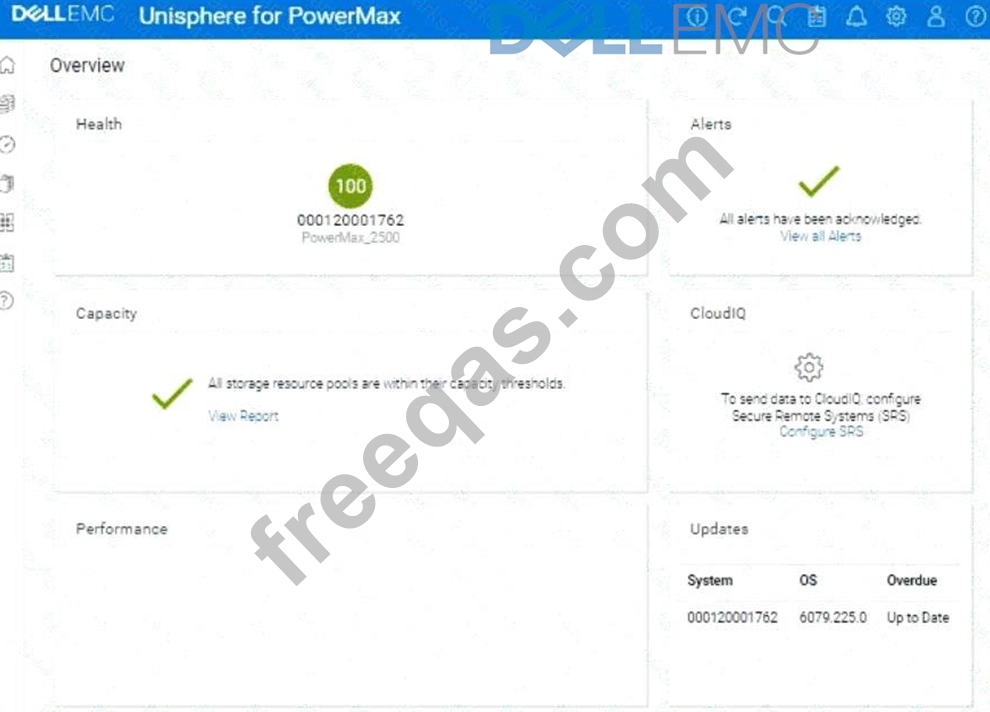
See the explanation for step by step solution. Explanation: Okay, I understand. We need to configure a recurring exclusion window in the Unisphere for PowerMax simulator to exclude performance load during a weekly backup that occurs every Sunday from 8:00 AM to 9: 00 AM. This exclusion will prevent the backup load from affecting system-level compliance calculations. Here's a step-by-step guide on how to do this, based on typical Unisphere functionality: Steps: 1. Launch the Simulator and Navigate to the System Settings * Open Unisphere for PowerMax in your web browser. * Log in to the simulator (you should already be logged in with the array SID 1762 selected, based on the image). * In the left-hand navigation pane, locate the settings or configuration section. The exact location might vary slightly, but it's often found under: * Home>System Settings * Settings(an icon representing settings, like a gear) * Admin>System * In this instance, click thegearicon on the top right corner of the Unisphere interface. 2. Find the Exclusion Window Settings * Within the system settings, look for a section related to performance monitoring, metrics, or thresholds. * Within this section, search for an option to configure "Exclusion Windows," "Scheduled Exclusions," or something similar. The exact name may vary. 3. Create a New Exclusion Window * Click on a button or link to create a new exclusion window. This might be labeled: * "Create" * "Add" * "+"(a plus icon) * A new window or panel will appear, allowing you to configure the exclusion window settings. 4. Configure the Exclusion Window Settings * Name (Optional):You can give the exclusion window a descriptive name, such as "Weekly Backup Exclusion." * Type:Select"Recurring"or"Repeating"as the exclusion window type. * Schedule: * Day of the Week:Select"Sunday". * Start Time:Set the start time to 08:00 (or 8:00 AM). Make sure the time is in 24-hour format or that you correctly select AM if using 12-hour format. * End Time:Set the end time to 09:00 (or 9:00 AM). * Scope/Target:Since we want this exclusion to apply at the system level, make sure the scope is set to "System"or the entire array (SID 1762 in this case). You might not need to explicitly select this if system-level is the default. * Components/Metrics:In some Unisphere versions, you can choose which components or metrics to exclude. In our case, we want to exclude the load for "all components." If there's an option to select components, either choose "All" or leave it at the default (which likely includes all components). 5. Save the Exclusion Window * After configuring all the settings, review them carefully to make sure they are correct. * Click the button to save the exclusion window. This might be labeled: * "Create" * "Save" * "OK" * "Apply" 6. Verify Exclusion Window Creation (Optional) * After the exclusion window is created, you can usually verify its settings in the exclusion window list. * You should see the new exclusion window listed with the correct schedule (Sunday, 8:00 AM - 9:00 AM) and scope (system level). Topic2, Multiple Choice Questions
Question 40
A company is setting up a multi-tenant environment where multiple departments share the same storage array with SID 1762. The IT department requires 2 TB of storage to be available on the ESXi1 host. Use "ESXi1_SG" for the storage group name, create a port group with Dir- Ports "OR-1C:0 and OR-2C:0," and leave all other settings at their default. Using the simulator, provision the storage required with a single volume using auto-provisioning groups.
Correct Answer:
See the explanation for step by step solution. Explanation: We need to provision 2 TB of storage to the ESXi1 host on a PowerMax array (SID 1762) using Unisphere, in a multi-tenant environment. We'll use auto-provisioning with the following specifics: * Storage Group Name:ESXi1_SG * Port Group:(A new port group with Directors OR-1C:0 and OR-2C:0) * Volume Size:2 TB (single volume) * Other Settings:Default Here are the step-by-step instructions, tailored for the Unisphere simulator as described in the question: Steps: 1. Launch the Simulator and Navigate to Storage Groups * Open Unisphere for PowerMax in your web browser. * You should already be logged in to the simulator, with the PowerMax array with SID 1762. * In the left-hand navigation pane, click onStorage>Storage Groups. 2. Initiate Storage Group Creation * Click theCreatebutton (likely a plus "+" icon) in the Storage Groups section to start the Create Storage Group wizard. 3. Name the Storage Group * In the "Create Storage Group" wizard: * Storage Group Name:Enter ESXi1_SG. * Enable FAST/Service Level:Do not check this option, as we are leaving all other settings at their default. * ClickNextorContinue(the exact wording might vary). 4. Add Volumes * Ensure"Create new volumes"is selected. * Number of Volumes:Enter 1. * Volume Size: * Enter 2. * Select TB from the dropdown for the unit. * ClickNext. 5. Create the Port Group * You should now be on the "Connectivity" or "Host" step, where you will add a new port group. * Select "Create Port Group" * Port Group Name:Give the new port group a name. You can use something descriptive like "ESXi1_PG," or any name that follows your organization's naming conventions. * Select Ports: * Find and select the following Directors and ports from the list of available ports: * OR-1C:0 * OR-2C:0 * Note:The simulator may not allow you to highlight the exact director ports as in a production environment. It will likely display all directors and ports under the selected array. Just ensure they are selected as part of the port group. * ClickNext. 6. Add host to the Masking View * Select "Add Host" * Select "Create New Host" * Host Name:ESXi1 * Initiators:You don't have specific initiators to add in this simulation, so you can skip this part or add any from the available options. This is because we are working within a simulated environment. * ClickNext 7. Review and Create * You'll be presented with a summary page that shows: * Storage Group: ESXi1_SG * Volume: 1 x 2 TB volume * Port Group: (The new port group you created with OR-1C:0 and OR-2C:0) * Host: ESXi1 * Carefully review all the settings to make sure they are correct. * ClickRun NoworFinish(or similar wording) to create the storage group, volume, port group, and masking view. 8. Verification (Optional) * After the operation completes, you can verify the results: * Go back to theStorage Groupslist. You should see the ESXi1_SG storage group. * Click on ESXi1_SG to view its details. You should see the 2 TB volume and the associated host (ESXi1) and port group. * You can also navigate toHosts>Port Groupsto verify that the new port group was created correctly. * Finally, you can navigate toHosts>Masking Viewsto verify that a masking view was created correctly.