FreeQAs
 Request Exam  Contact
  • Home
  • View All Exams
  • New QA's
  • Upload
PRACTICE EXAMS:
  • Oracle
  • Fortinet
  • IBM
  • Juniper
  • Microsoft
  • Cisco
  • Citrix
  • CompTIA
  • VMware
  • ISC
  • SAP
  • EMC
  • PMI
  • HP
  • Salesforce
  • Other
  • Oracle
    Oracle
  • Fortinet
    Fortinet
  • IBM
    IBM
  • Juniper
    Juniper
  • Microsoft
    Microsoft
  • Cisco
    Cisco
  • Citrix
    Citrix
  • CompTIA
    CompTIA
  • VMware
    VMware
  • ISC
    ISC
  • SAP
    SAP
  • EMC
    EMC
  • PMI
    PMI
  • HP
    HP
  • Salesforce
    Salesforce
  1. Home
  2. Microsoft Certification
  3. AZ-400 Exam
  4. Microsoft.AZ-400.v2024-04-28.q185 Dumps
  • ««
  • «
  • …
  • 7
  • 8
  • 9
  • 10
  • 11
  • 12
  • 13
  • 14
  • 15
  • 16
  • …
  • »
  • »»
Download Now

Question 51

You need to create a virtual machine template in an Azure DevTest Labs environment named az400-9940427-dtl1. The template must be based on Windows Server 2016 Datacenter. Virtual machines created from the template must include the selenium tool and the Google Chrome browser.
To complete this task, sign in to the Microsoft Azure portal.

Correct Answer:
See solution below.
Explanation
1. Open Microsoft Azure Portal
2. Select All Services, and then select DevTest Labs inthe DEVOPS section.

3. From the list of labs, select the az400-9940427-dtl1 lab
4. On the home page for your lab, select + Add on the toolbar.
5. Select the Windows Server 2016 Datacenter base image for the VM.
6. Select automation options at thebottom of the page above the Submit button.
7. You see the Azure Resource Manager template for creating the virtual machine.
8. The JSON segment in the resources section has the definition for the image type you selected earlier.
References:
https://docs.microsoft.com/bs-cyrl-ba/azure//lab-services/devtest-lab-vm-powershell
insert code

Question 52

You plan to deploy a runbook that willcreate Azure AD user accounts.
You need to ensure that runbooks can run the Azure PowerShell cmdlets for Azure Active Directory.
To complete this task, sign in to the Microsoft Azure portal.

Correct Answer:
See solution below.
Explanation
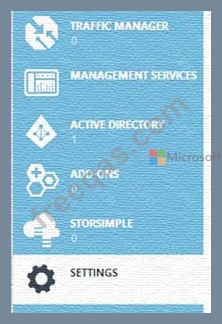
AzureAutomation now ships with the Azure PowerShell module of version 0.8.6, which introduced the ability to non-interactively authenticate to Azure using OrgId (Azure Active Directory user) credential-based authentication. Using the steps below, you can set upAzure Automation to talk to Azure using this authentication type.
Step 1: Find the Azure Active Directory associated with the Azure subscription to manage:
1. Log in to the Azure portal as the service administrator for the Azure subscription you want to manage using Azure Automation. You can find this user by logging in to the Azure portal as any user with access to this Azure subscription, then clicking Settings, then Administrators.

2. Note the name of the directory associated with the Azure subscription you want to manage. You can find this directory by clicking Settings, then Subscriptions.

Step 2: Create an Azure Active Directory user in the directory associated with the Azure subscription to manage:
You can skip this step if you already have an Azure Active Directory user in this directory. and plan to use this OrgId to manage Azure.
1. In the Azure portal click on Active Directory service.

2. Click the directory name that is associated with this Azure subscription.
3. Click on theUsers tab and then click the Add User button.
4. For type of user, select "New user in your organization." Enter a username for the user to create.
5. Fill out the user's profile. For role, pick "User." Don't enable multi-factor authentication. Multi-factor accounts cannot be used with Azure Automation.
6. Click Create.
7. Jot down the full username (including part after @ symbol) and temporary password.
Step 3: Allow this Azure Active Directory user to manage this Azure subscription.
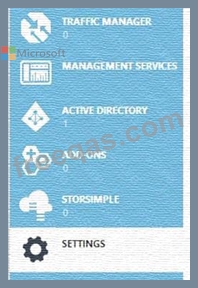
1. Click on Settings(bottom Azure tab under StorSimple)

2. Click Administrators
3. Click the Add button. Type the full user name (including part after @ symbol) of the Azure Active Directory user you want to set up to manage Azure. For subscriptions, choose the Azure subscriptions you want this user to be able to manage. Click the check mark.
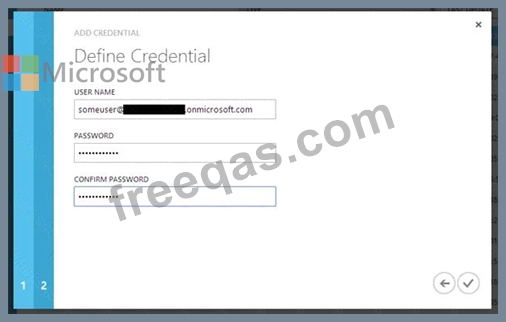
Step 4: Configure Azure Automation to use this Azure Active Directory user to manage this Azure subscription Create an Azure Automation credential asset containing the username and password of the Azure Active Directory user that you have just created. You can create a credential asset in Azure Automation by clicking into an Automation Account and then clicking the Assets tab, then the Add Setting button.

Note: Once you have set up the Azure Active Directory credential in Azure and Azure Automation, you can now manage Azure from Azure Automation runbooks using this credential.
References:
https://azure.microsoft.com/sv-se/blog/azure-automation-authenticating-to-azure-using-azure-active-directory/
insert code

Question 53

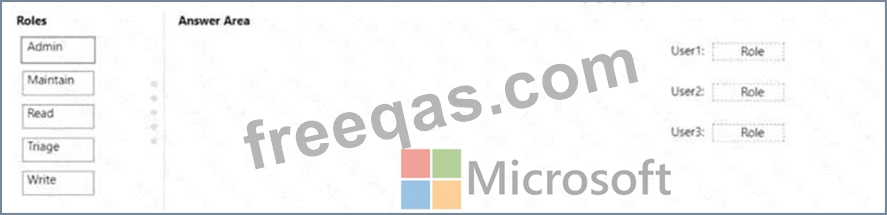
You have a GitHub organization that contains three users named User 1. User2. and User3. You have a project that contains a repository named repo1. You need toconfigure permissions for repo1. The solution must meet the following requirements:
* Ensure that User 1 can actively push to repo1.
* Ensure that Usef2 can manage issues and pull requests for repo1.
* Ensure that User3 can manage repo1.
* PreventUser3 from accessing sensitive data in repo1.
Which role should you assign to each use?
Correct Answer:
insert code

Question 54

You need to implement the code flow strategy for Project2 in Azure DevOps.
Which three actions should you perform in sequence? To answer, move the appropriate actions from the list of actions to the answer area and arrange them in the correct order.
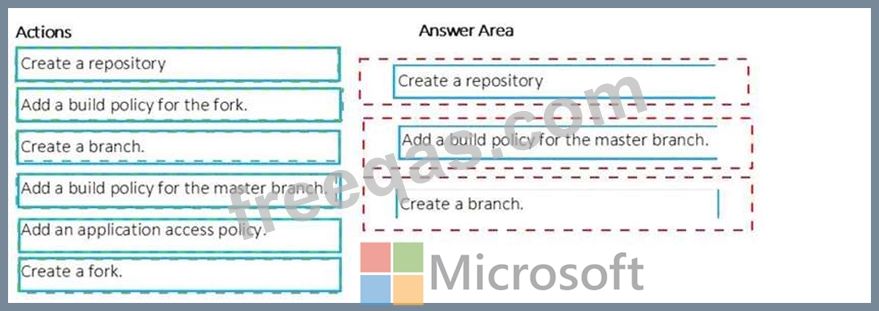
Correct Answer:

Explanation
insert code

Question 55

Your company develops an app for OS. All users of the app have devices that are members of a private distribution group in Microsoft Visual Studio App Center.
You plan to distribute a new release of the app.
You need to identify which certificate file you require to distribute the new release from App Center.
Which file type should you upload to App Center?


Correct Answer: D
A successful IOS device build will produce an ipa file. In order to install the build on a device, it needs to be signed with a valid provisioning profile and certificate. To sign the builds produced from a branch, enable code signing in the configuration pane and upload a provisioning profile (.mobileprovision) and a valid certificate (.p12), along with the password for the certificate.
Reference:
https://docs.microsoft.com/en-us/appcenter/build/xamarin/ios/
insert code
  • ««
  • «
  • …
  • 7
  • 8
  • 9
  • 10
  • 11
  • 12
  • 13
  • 14
  • 15
  • 16
  • …
  • »
  • »»
[×]

Download PDF File

Enter your email address to download Microsoft.AZ-400.v2024-04-28.q185 Dumps

Email:

FreeQAs

Our website provides the Largest and the most Latest vendors Certification Exam materials around the world.

Using dumps we provide to Pass the Exam, we has the Valid Dumps with passing guranteed just which you need.

  • DMCA
  • About
  • Contact Us
  • Privacy Policy
  • Terms & Conditions
©2026 FreeQAs

www.freeqas.com materials do not contain actual questions and answers from Cisco's certification exams.