FreeQAs
 Request Exam  Contact
  • Home
  • View All Exams
  • New QA's
  • Upload
PRACTICE EXAMS:
  • Oracle
  • Fortinet
  • Juniper
  • Microsoft
  • Cisco
  • Citrix
  • CompTIA
  • VMware
  • SAP
  • EMC
  • PMI
  • HP
  • Salesforce
  • Other
  • Oracle
    Oracle
  • Fortinet
    Fortinet
  • Juniper
    Juniper
  • Microsoft
    Microsoft
  • Cisco
    Cisco
  • Citrix
    Citrix
  • CompTIA
    CompTIA
  • VMware
    VMware
  • SAP
    SAP
  • EMC
    EMC
  • PMI
    PMI
  • HP
    HP
  • Salesforce
    Salesforce
  1. Home
  2. Tableau Certification
  3. TCC-C01 Exam
  4. Tableau.TCC-C01.v2025-10-01.q20 Dumps
  • «
  • 1
  • 2
  • 3
  • 4
  • 5
Download Now

Question 16


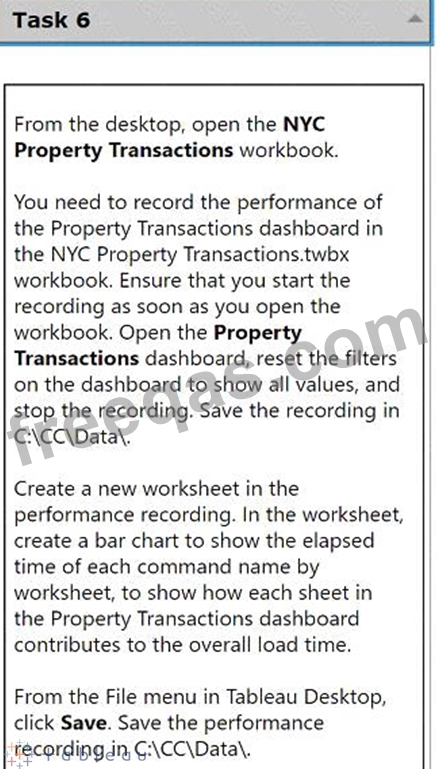
From the desktop, open the NYC
Property Transactions workbook.
You need to record the performance of
the Property Transactions dashboard in
the NYC Property Transactions.twbx
workbook. Ensure that you start the
recording as soon as you open the
workbook. Open the Property
Transactions dashboard, reset the filters
on the dashboard to show all values, and
stop the recording. Save the recording in
C:\CC\Data\.
Create a new worksheet in the
performance recording. In the worksheet,
create a bar chart to show the elapsed
time of each command name by
worksheet, to show how each sheet in
the Property Transactions dashboard
contributes to the overall load time.
From the File menu in Tableau Desktop,
click Save. Save the performance
recording in C:\CC\Data\.

Correct Answer:
See the complete Steps below in Explanation:
Explanation:
To record the performance of the Property Transactions dashboard in the NYC Property Transactions.twbx workbook and analyze it using a bar chart, follow these detailed steps:
* Open the NYC Property Transactions Workbook:
* From the desktop, double-click the NYC Property Transactions.twbx workbook to open it in Tableau Desktop.
* Start Performance Recording:
* Before doing anything else, navigate to the 'Help' menu in Tableau Desktop.
* Select 'Settings and Performance', then choose 'Start Performance Recording'.
* Open the Property Transactions Dashboard and Reset Filters:
* Navigate to the Property Transactions dashboard within the workbook.
* Reset all filters to show all values. This usually involves selecting the dropdown on each filter and choosing 'All' or using a 'Reset' button if available.
* Stop the Performance Recording:
* Go back to the 'Help' menu.
* Choose 'Settings and Performance', then select 'Stop Performance Recording'.
* Tableau will automatically open a new tab displaying the performance recording results.
* Save the Performance Recording:
* In the performance recording results tab, go to the 'File' menu.
* Click 'Save As' and navigate to the C:\CC\Data\ directory.
* Save the file, ensuring it is stored in the desired location.
* Create a New Worksheet for Performance Analysis:
* Return to the NYC Property Transactions workbook and create a new worksheet by clicking on the 'New Worksheet' icon.
* Drag the 'Command Name' field to the Columns shelf.
* Drag the 'Elapsed Time' field to the Rows shelf.
* Ensure that the 'Worksheet' field is also included in the analysis to break down the time by individual sheets within the dashboard.
* Choose 'Bar Chart' from the 'Show Me' options to display the data as a bar chart.
* Customize and Finalize the Bar Chart:
* Adjust the axes and labels to clearly display the information.
* Format the chart to enhance readability, applying color coding or sorting as needed to emphasize sheets with longer load times.
* Save Your Work:
* Once the new worksheet and the performance recording are complete, ensure all work is saved.
* Navigate to the 'File' menu and click 'Save', confirming that changes are stored in the workbook.
References:
* Tableau Help Documentation: Provides guidance on how to start and stop performance recordings and analyze them.
* Tableau Visualization Techniques: Offers tips on creating effective bar charts for performance data.
By following these steps, you have successfully recorded and analyzed the performance of the Property Transactions dashboard, providing valuable insights into how each component of the dashboard contributes to the overall load time. This analysis is crucial for optimizing dashboard performance and ensuring efficient data visualization.
insert code

Question 17

A client wants to report Saturday and Sunday regardless of the workbook's data source's locale settings.
Which calculation should the consultant recommend?

Correct Answer: D
The calculationDATEPART('iso-weekday', [Order Date])=1 or DATEPART('iso-weekday', [Order Date])=7is recommended because the ISO standard considers Monday as the first day of the week (1) and Sunday as the last day (7). This calculation will correctly identify Saturdays and Sundays regardless of the locale settings of the workbook's data source, ensuring that the report includes these days as specified by the client.
References:The use of the 'iso-weekday' part in the DATEPART function is consistent with the ISO 8601 standard, which is independent of locale settings.This approach is supported by Tableau's documentation on date functions and their behavior with different locale settings123.
To accurately identify weekends across different locale settings, using the 'iso-weekday' component is reliable as it is consistent across various locales:
* ISO Weekday Function: The ISO standard treats Monday as the first day of the week (1), which makes Sunday the seventh day (7). This standardization helps avoiddiscrepancies in weekday calculations that might arise due to locale-specific settings.
* Identifying Weekends: The calculation checks if the 'iso-weekday' part of the date is either 1 (Sunday) or 7 (Saturday), thereby correctly identifying weekends regardless of the locale settings.
References:
* Handling Locale-Specific Settings: Using ISO standards in date functions allows for uniform results across systems with differing locale settings, essential for consistent reporting in global applications.
insert code

Question 18

A consultant migrated a data source to improve performance. The consultant wants to identify which workbooks need to be updated to point to the new data source.
Which Tableau tool should the consultant use?

Correct Answer: D
To identify which workbooks need to be updated to point to a new data source after a migration, a consultant should use Tableau Advanced Management. This component of Tableau provides comprehensive management capabilities including the ability to track workbook dependencies and data source usage across your entire Tableau environment. Using Tableau Advanced Management allows consultants to assess the impact of changes in the data source on connected workbooks and efficiently manage updates.
insert code

Question 19

Use the following login credentials to sign in
to the virtual machine:
Username: Admin
Password:
The following information is for technical
support purposes only:
Lab Instance: 40201223
To access Tableau Help, you can open the
Help.pdf file on the desktop.
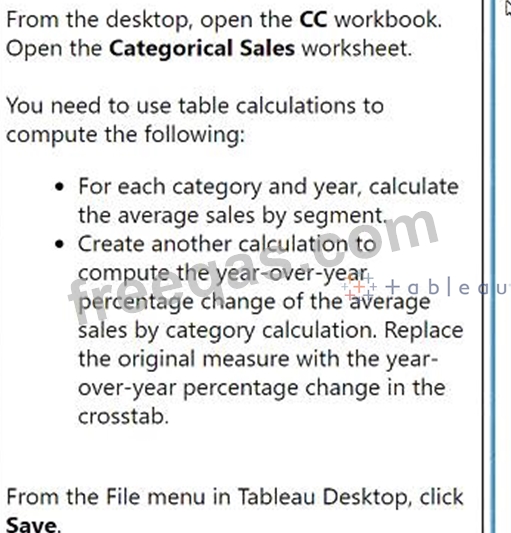
From the desktop, open the CC workbook.
Open the Categorical Sales worksheet.
You need to use table calculations to
compute the following:
. For each category and year, calculate
the average sales by segment.
. Create another calculation to
compute the year-over-year
percentage change of the average
sales by category calculation. Replace
the original measure with the year-
over-year percentage change in the
crosstab.
From the File menu in Tableau Desktop, click
Save.

Correct Answer:
See the complete Steps below in Explanation:
Explanation:
To compute the required calculations and update the worksheet in Tableau Desktop, follow these steps:
* Compute Average Sales by Segment for Each Category and Year:
* Open the CC workbook and navigate to the Categorical Sales worksheet.
* Drag the 'Sales' field to the Rows shelf if it's not already there.
* Drag the 'Segment' field to the Rows shelf as well, placing it next to 'Category' and 'Year'.
* Right-click on the 'Sales' field in the Rows shelf and select 'Quick Table Calculation' > 'Average'.
This will compute the average sales for each segment within each category and year.
* Create a Calculation for Year-over-Year Percentage Change:
* Right-click in the data pane and select 'Create Calculated Field'.
* Name the calculated field something descriptive, e.g., "YoY Sales Change".
* Enter the formula to calculate the year-over-year percentage change:
(ZN(SUM([Sales])) - LOOKUP(ZN(SUM([Sales])), -1)) / ABS(LOOKUP(ZN(SUM([Sales])), -1))
* Click 'OK' to save the calculated field.
* Replace the Original Measure with the Year-over-Year Percentage Change in the Crosstab:
* Remove the original 'Sales' measure from the view by dragging it off the Rows shelf.
* Drag the newly created "YoY Sales Change" calculated field to the Rows shelf where the 'Sales' field was originally.
* Format the "YoY Sales Change" field to display as a percentage. Right-click on the field in the Rows shelf, select 'Format', and adjust the number format to percentage.
* Save Your Changes:
* From the File menu, click 'Save' to ensure all your changes are stored.
References:
* Tableau Help: Offers guidance on creating calculated fields and using table calculations.
* Tableau Desktop User Guide: Provides instructions on formatting and saving worksheets.
These steps allow you to manipulate data within Tableau effectively, using table calculations to analyze trends and changes in sales data by category and segment over years.
insert code

Question 20

A consultant is designing a dashboard that will be consumed on desktops, tablets, and phones. The consultant needs to implement a dashboard design that provides the best user experience across all the platforms.
Which approach should the consultant take to achieve these results?


Correct Answer: A
For a consultant designing a dashboard to be consumed across multiple device types, the best approach is:
* Multi-device Layout: Tableau provides the capability to design device-specific layouts within a single dashboard. This feature allows the dashboard to adapt its layout to best fit the screen size and orientation of desktops, tablets, and phones.
* Fixed Size Layouts: By fixing the size of each layout, the consultant can ensure that the dashboard appears consistent and maintains the intended design elements and user experience across devices. Fixed sizes prevent components from resizing in ways that could disrupt the dashboard's readability or functionality.
* Implementation: In Tableau, you can create these layouts by selecting 'Device Preview' and adding custom layouts for each device type. Here, you define the dimensions and the positioning of sheets and controls tailored to each device's typical viewing mode.
ReferencesThis approach leverages Tableau's device designer capabilities, which are specifically designed to optimize dashboards for multiple viewing environments, ensuring a seamless user experience regardless of the device used. This functionality is well documented in Tableau's official guides on creating and managing device-specific dashboards.
insert code
  • «
  • 1
  • 2
  • 3
  • 4
  • 5
[×]

Download PDF File

Enter your email address to download Tableau.TCC-C01.v2025-10-01.q20 Dumps

Email:

FreeQAs

Our website provides the Largest and the most Latest vendors Certification Exam materials around the world.

Using dumps we provide to Pass the Exam, we has the Valid Dumps with passing guranteed just which you need.

  • DMCA
  • About
  • Contact Us
  • Privacy Policy
  • Terms & Conditions
©2026 FreeQAs

www.freeqas.com materials do not contain actual questions and answers from Cisco's certification exams.