FreeQAs
 Request Exam  Contact
  • Home
  • View All Exams
  • New QA's
  • Upload
PRACTICE EXAMS:
  • Oracle
  • Fortinet
  • Juniper
  • Microsoft
  • Cisco
  • Citrix
  • CompTIA
  • VMware
  • ISC
  • SAP
  • EMC
  • PMI
  • HP
  • Salesforce
  • Other
  • Oracle
    Oracle
  • Fortinet
    Fortinet
  • Juniper
    Juniper
  • Microsoft
    Microsoft
  • Cisco
    Cisco
  • Citrix
    Citrix
  • CompTIA
    CompTIA
  • VMware
    VMware
  • ISC
    ISC
  • SAP
    SAP
  • EMC
    EMC
  • PMI
    PMI
  • HP
    HP
  • Salesforce
    Salesforce
  1. Home
  2. UiPath Certification
  3. UiPath-ADAv1 Exam
  4. UiPath.UiPath-ADAv1.v2025-07-31.q108 Dumps
  • ««
  • «
  • …
  • 13
  • 14
  • 15
  • 16
  • 17
  • 18
  • 19
  • 20
  • 21
  • 22
  • …
  • »
  • »»
Download Now

Question 81

How does UiPath handle different dependency versions for multiple running processes that run at the same time?

Correct Answer: A
Explanation
UiPath handles different dependency versions for multiple running processes that run at the same time by using a feature called Dependency Isolation. This feature ensures that each running process can use the specific version of the dependency that it needs, without affecting or being affected by other processes. This way, UiPath avoids conflicts and errors caused by incompatible or missing dependency versions. (UiPath Automation Developer study guide) References:
Dependency Isolation
Managing Dependencies
insert code

Question 82

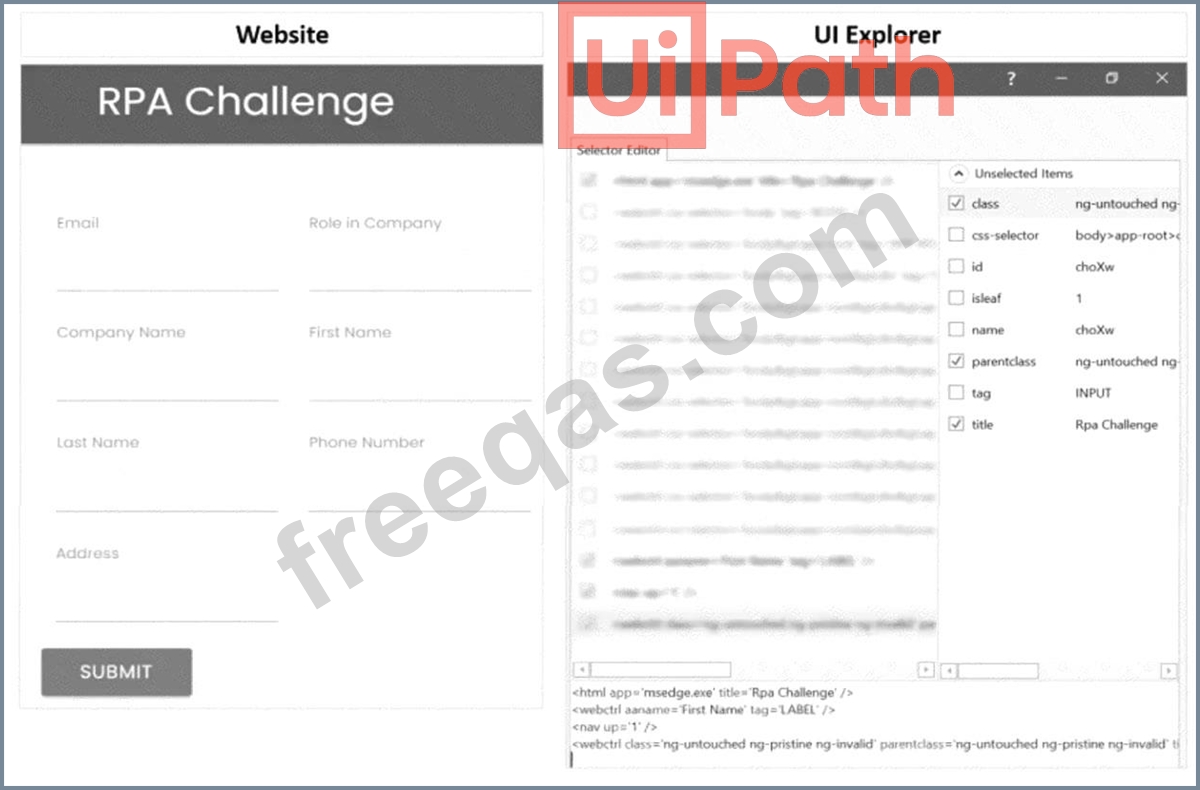
In order to make the selector specifically target the "First Name" text field during runtime, the developer needs to select one additional Property checkbox from the Unselected Items column in the UI Explorer.
Which is the additional Property checkbox in the following UI Explorer "Unselected Items" column that should be used for the First Name text field.
Correct Answer: B
To make a selector specifically target the "First Name" text field during runtime in the UI Explorer, the property that uniquely identifies the "First Name" field should be used. Based on the information provided, the most suitable property to use is the "id" as it is likely to be unique for each field in a form, which helps in precisely identifying the UI element.
References:
UiPath Studio Guide: Selectors
insert code

Question 83

Which two parts are included in an Anchor Base activity?

Correct Answer: A
The two parts that are included in an Anchor Base activity are Anchor and Action. The Anchor Base activity is a container that searches for a UI element by using other UI elements as anchors. This should be used when a reliable selector is not available. The Anchor Base activity has two sections: Anchor and Action. The Anchor section contains an activity that identifies the anchor element, such as Find Element or Find Image.
The Action section contains an activity that performs an action on the target element, such as Click or Type Into. The Anchor Base activity also has a property called AnchorPosition, which specifies the relative position of the target element to the anchor element, such as left, right, top, or bottom2. For example, if the Anchor Base activity is used to click on a button that is always to the right of a label, the Anchor section can use the Find Element activity to find the label, the Action section can use the Click activity to click on the button, and the AnchorPosition property can be set to Right3.
insert code

Question 84

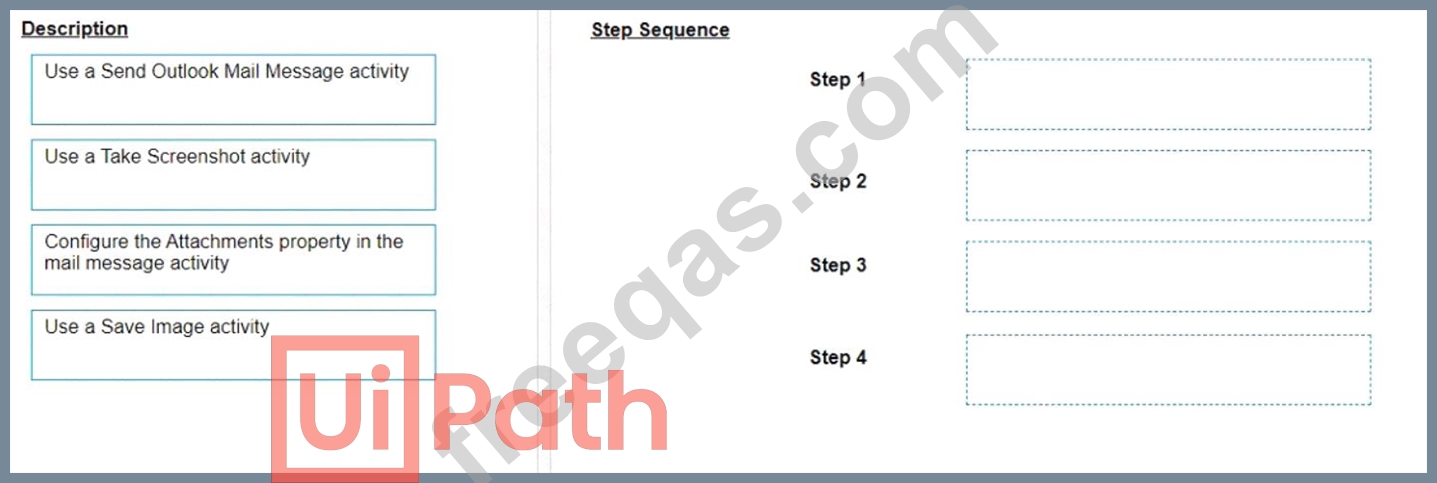
A developer needs to take a screenshot of the state of the machine while the robot is running and then send the screenshot as an email. What is the correct sequence of steps that should be performed?
Instructions: Drag the Description found on the left and drop on the correct Step found on the right.
Correct Answer:

Explanation
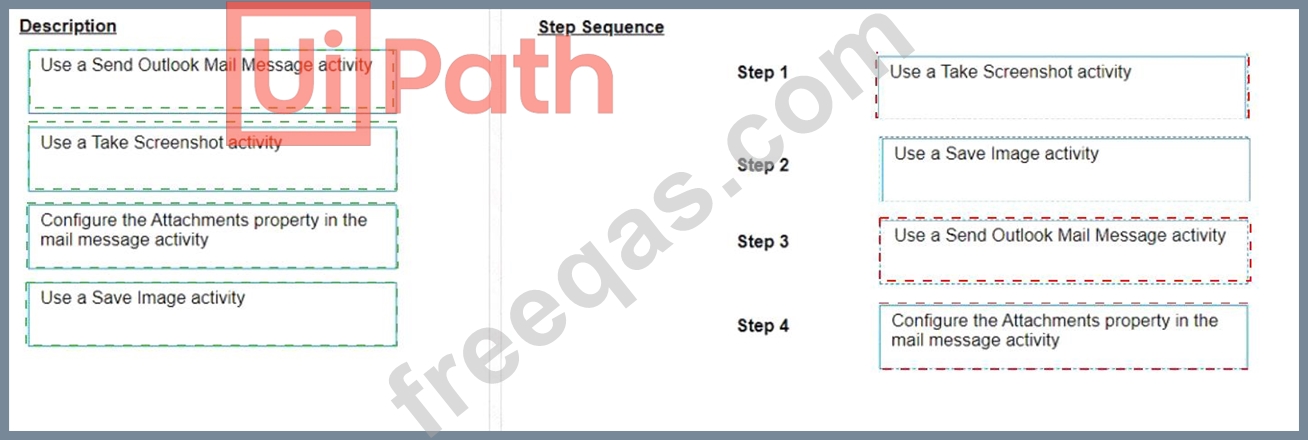
The correct sequence of steps that should be performed is:
Step 1 = Use a Take Screenshot activity to capture the state of the machine. The output is an Image variable, for example img_screenshot.
Step 2 = Use a Save Image activity to save the image to a local file. Supply the FileName (e.g.
screenshot.png) and the Image property should be the variable created in step 1.
Step 3 = Use a Send Outlook Mail Message activity to compose and send the email. Configure the Attachments property to include the file path of the image saved in step 2 (e.g. "C:\Users\username\screenshot.png").
Step 4 = Optionally, use a Delete File activity to delete the image file from the local drive after sending the email. Supply the Path property with the same file path as in step 3.
For more information on how to use these activities in UiPath Studio 2021 10, you can refer to these documents:
Take Screenshot
Save Image
Send Outlook Mail Message
Delete File
insert code

Question 85

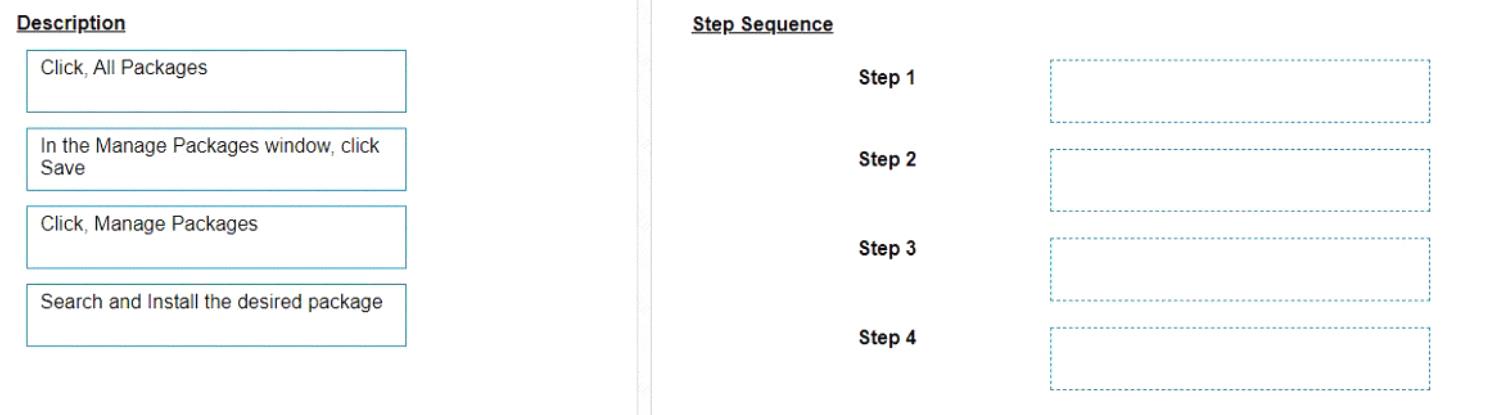
What is the correct sequence of steps to install a new Activities package in UiPath Studio 2021 10?
Instructions:
Drag the Description found on the left and drop on the correct Step found on the right.
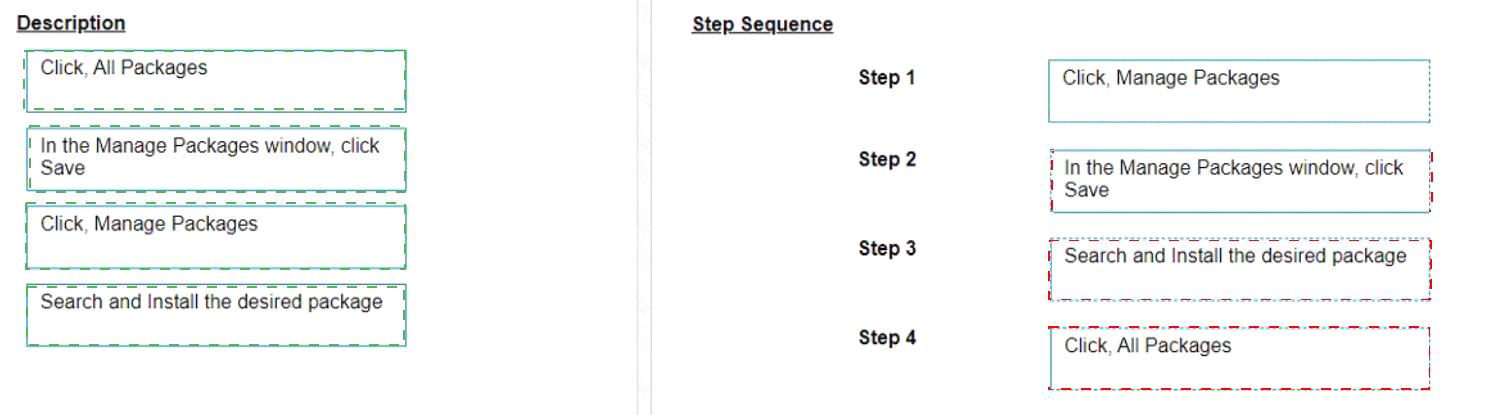
Correct Answer:

Explanation
Click, Manage Packages
In the Manage Packages window, click Save
Search and Install the desired package
Click, All Packages
The correct sequence of steps to install a new Activities package in UiPath Studio 2021 10 is:
Click Manage Packages in the ribbon.
In the Manage Packages window, click All Packages in the left panel.
Search for the desired package in the search box and select it from the list.
Click Install and then Save to complete the installation.
Comprehensive and Detailed Explanation: To install a new Activities package in UiPath Studio 2021 10, you need to follow these steps:
Click Manage Packages in the ribbon. This will open the Manage Packages window, where you can browse, install, update, or remove packages from your project.
In the Manage Packages window, click All Packages in the left panel. This will display all the available packages from the official UiPath feed, as well as any other feeds that you have configured in the Settings tab.
Search for the desired package in the search box and select it from the list. You can also filter the packages by category, compatibility, or source. You can see the package details, such as version, description, dependencies, and release notes, in the right panel.
Click Install and then Save to complete the installation. The package will be added to your project dependencies and downloaded to the local cache. You can also choose to install a specific version of the package by clicking on the version number and selecting from the drop-down list.
References:
Managing Packages
Installing and Updating Packages
insert code
  • ««
  • «
  • …
  • 13
  • 14
  • 15
  • 16
  • 17
  • 18
  • 19
  • 20
  • 21
  • 22
  • …
  • »
  • »»
[×]

Download PDF File

Enter your email address to download UiPath.UiPath-ADAv1.v2025-07-31.q108 Dumps

Email:

FreeQAs

Our website provides the Largest and the most Latest vendors Certification Exam materials around the world.

Using dumps we provide to Pass the Exam, we has the Valid Dumps with passing guranteed just which you need.

  • DMCA
  • About
  • Contact Us
  • Privacy Policy
  • Terms & Conditions
©2026 FreeQAs

www.freeqas.com materials do not contain actual questions and answers from Cisco's certification exams.