FreeQAs
 Request Exam  Contact
  • Home
  • View All Exams
  • New QA's
  • Upload
PRACTICE EXAMS:
  • Oracle
  • Fortinet
  • IBM
  • Juniper
  • Microsoft
  • Cisco
  • Citrix
  • CompTIA
  • VMware
  • ISC
  • SAP
  • EMC
  • PMI
  • HP
  • Salesforce
  • Other
  • Oracle
    Oracle
  • Fortinet
    Fortinet
  • IBM
    IBM
  • Juniper
    Juniper
  • Microsoft
    Microsoft
  • Cisco
    Cisco
  • Citrix
    Citrix
  • CompTIA
    CompTIA
  • VMware
    VMware
  • ISC
    ISC
  • SAP
    SAP
  • EMC
    EMC
  • PMI
    PMI
  • HP
    HP
  • Salesforce
    Salesforce
  1. Home
  2. UiPath Certification
  3. UiPath-ADAv1 Exam
  4. UiPath.UiPath-ADAv1.v2024-05-27.q139 Dumps
  • ««
  • «
  • …
  • 19
  • 20
  • 21
  • 22
  • 23
  • 24
  • 25
  • 26
  • 27
  • 28
  • …
  • »
  • »»
Download Now

Question 111

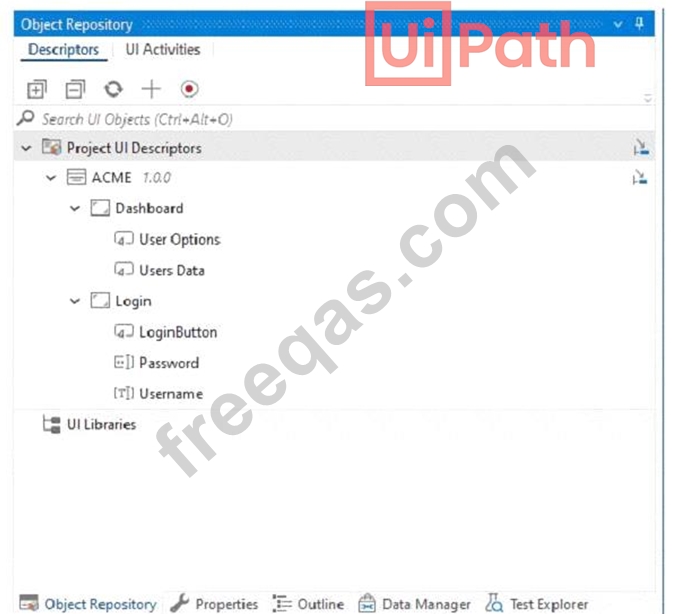
Which of the following options is correct regarding the below Object Repository tree structure?
Correct Answer: D
The Object Repository tree structure shows one application with two screens and five UI elements. The application is the top-level node, the screens are the second-level nodes, and the UI elements are the third-level nodes. The UI elements have properties, selectors, and images that define them.
https://docs.uipath.com/studio/docs/about-the-object-repository
insert code

Question 112

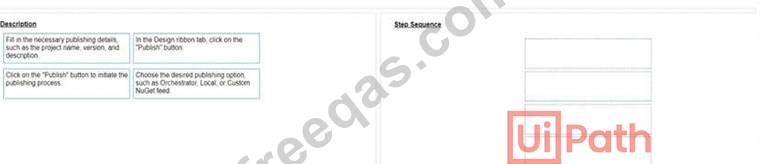
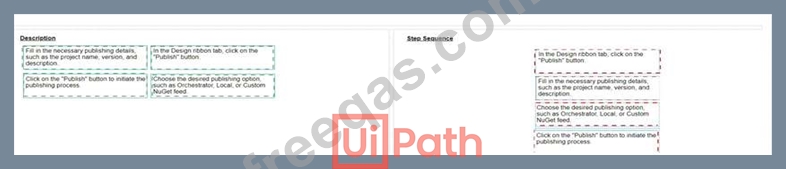
What are the steps to publish a project from UiPath Studio?
Instructions: Drag the Description found on the "Left" and drop on the correct Step Sequence found on the
"Right".
Correct Answer:

Explanation
A screenshot of a computer Description automatically generated

The steps to publish a project from UiPath Studio are:
In the Design ribbon tab, click on the "Publish" button. The Publish Project window opens. (UiPath Studio documentation1) Fill in the necessary publishing details, such as the project name, version, and description. You can also add release notes and select the environment where the project will run. (UiPath Studio documentation1) Choose the desired publishing option, such as Orchestrator, Local, or Custom NuGet feed. Depending on your choice, you may need to provide additional information, such as the Orchestrator URL, the local folder path, or the custom feed URL. (UiPath Studio documentation1) Click on the "Publish" button to initiate the publishing process. A confirmation message will appear when the project is successfully published. (UiPath Studio documentation1) Short Explanation: Publishing a project from UiPath Studio means creating a package that contains all the files and dependencies required to run the automation process. The package can be deployed to different locations, such as Orchestrator, a local machine, or a custom NuGet feed. Publishing a project from UiPath Studio involves four main steps: clicking on the Publish button, filling in the publishing details, choosing the publishing option, and confirming the publishing process. (UiPath Automation Developer study guide2) References:
1: Publishing Projects from Studio - UiPath Studio.
2: UiPath Certified Automation Developer - Learning Plan.
insert code

Question 113

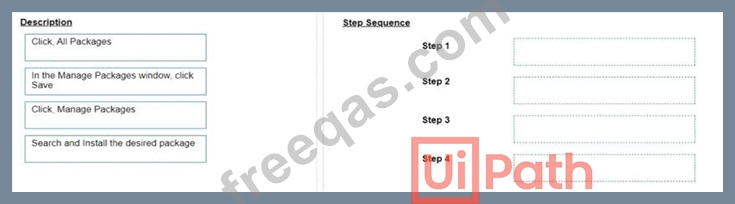
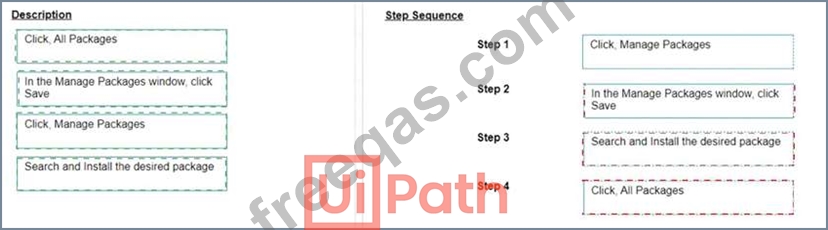
What is the correct sequence of steps to install a new Activities package in UiPath Studio 2021 10?
Instructions:
Drag the Description found on the left and drop on the correct Step found on the right.
Correct Answer:

Explanation
Click, Manage Packages
In the Manage Packages window, click Save
Search and Install the desired package
Click, All Packages
The correct sequence of steps to install a new Activities package in UiPath Studio 2021 10 is:
Click Manage Packages in the ribbon.
In the Manage Packages window, click All Packages in the left panel.
Search for the desired package in the search box and select it from the list.
Click Install and then Save to complete the installation.
Comprehensive and Detailed Explanation: To install a new Activities package in UiPath Studio 2021 10, you need to follow these steps:
Click Manage Packages in the ribbon. This will open the Manage Packages window, where you can browse, install, update, or remove packages from your project.
In the Manage Packages window, click All Packages in the left panel. This will display all the available packages from the official UiPath feed, as well as any other feeds that you have configured in the Settings tab.
Search for the desired package in the search box and select it from the list. You can also filter the packages by category, compatibility, or source. You can see the package details, such as version, description, dependencies, and release notes, in the right panel.
Click Install and then Save to complete the installation. The package will be added to your project dependencies and downloaded to the local cache. You can also choose to install a specific version of the package by clicking on the version number and selecting from the drop-down list.
References:
Managing Packages
Installing and Updating Packages
insert code

Question 114

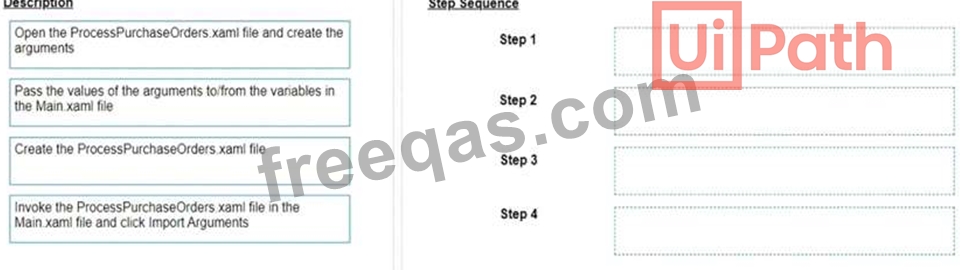
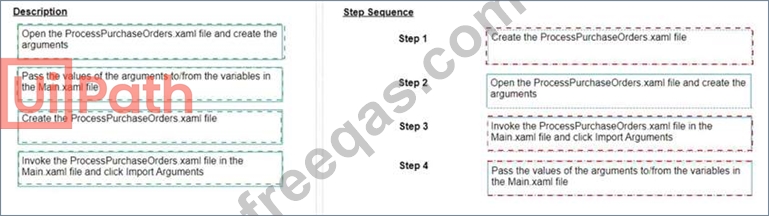
A developer wants to invoke a workflow in Main xaml called ProcessPurchaseOrders.xamI. Data needs to be passed to and from the invoked workflow What is the correct sequence of steps the developer needs to perform?
Instructions: Drag the Description found on the left and drop on the correct Step found on the right
Correct Answer:

Explanation
The correct sequence of steps the developer needs to perform is:
Step 1 = Create the ProcessPurchaseOrders.xaml file
Step 2 = Open the ProcessPurchaseOrders.xaml file and create the arguments Step 3 = Invoke the ProcessPurchaseOrders.xaml file in the Main.xaml file and click Import Arguments Step 4 = Pass the values of the arguments to/from the variables in the Main.xaml file This sequence will ensure that the developer can create a reusable workflow, invoke it from the main workflow, and pass data between them using arguments.
https://forum.uipath.com/t/import-arguments-in-invoke-workflow-file/1923
https://forum.uipath.com/t/pass-arguments-invoke/132595
insert code

Question 115

Consider the following Try Catch statement:

What will happen when the code is executed?

Correct Answer: B
Explanation
This is because the code is throwing a new IOException, but there is no catch block defined for IOException.
The catch blocks present are for BusinessRuleException, ArgumentException, and InvalidOperationException. Therefore, the code will not be able to handle the thrown exception. References:
https://docs.uipath.com/activities/docs/try-catch
insert code
  • ««
  • «
  • …
  • 19
  • 20
  • 21
  • 22
  • 23
  • 24
  • 25
  • 26
  • 27
  • 28
  • …
  • »
  • »»
[×]

Download PDF File

Enter your email address to download UiPath.UiPath-ADAv1.v2024-05-27.q139 Dumps

Email:

FreeQAs

Our website provides the Largest and the most Latest vendors Certification Exam materials around the world.

Using dumps we provide to Pass the Exam, we has the Valid Dumps with passing guranteed just which you need.

  • DMCA
  • About
  • Contact Us
  • Privacy Policy
  • Terms & Conditions
©2026 FreeQAs

www.freeqas.com materials do not contain actual questions and answers from Cisco's certification exams.
